
📦 The full sanitized setup (architecture, Compose files, and every config) is on GitHub: zakaria-ybeggazene/homelab-template.
I’m Zakaria, a computer science engineer, and I built this home server to explore and learn. I wanted to understand, hands on, how the pieces of a real self-hosted stack fit together: containers, reverse proxies, TLS, VPNs, dynamic DNS, and the networking underneath all of it. This post is me sharing that experience and explaining exactly how I did it, in case it helps you build your own.
It runs on my existing Windows 11 development machine, with no new hardware. Everything lives in Docker containers, it’s reachable securely from anywhere, and the whole thing is designed to pick up and move to a VPS later without rework. This is what I built, the decisions that mattered, and the bugs that taught me the most.
Update: since I first wrote this, I’ve moved this blog off the self-hosted Ghost instance onto a Hugo site on Cloudflare Pages which is always-on and independent of whether my PC is running. The homelab itself is now VPN-only. The architecture described below is the setup as I originally built it, and it’s still exactly how the private services work today.
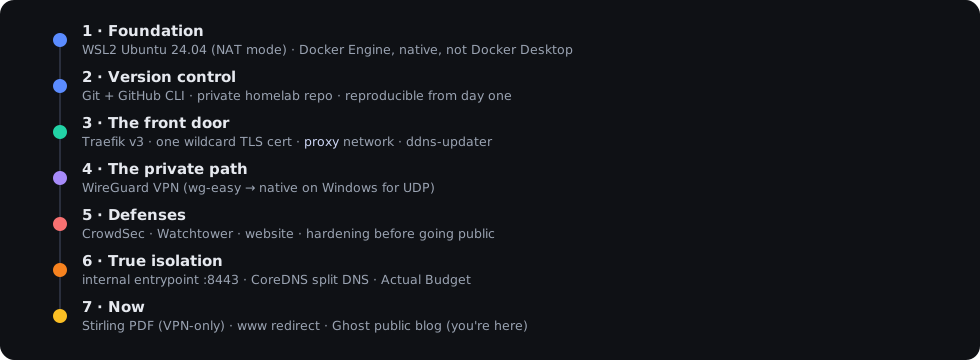
Each layer built on the previous one. The colour shift tracks the shift in concern, from setup to routing to privacy to defense to isolation.
The constraints I started with
I wanted three things. The setup had to be cloud-native in structure even though it runs at home, meaning everything in containers, version-controlled, reproducible. It had to be private by default. And it had to migrate to a VPS later with zero rework.
The privacy requirement ruled out the most popular option for exposing a home server: Cloudflare Tunnels. Tunnels are convenient, but Cloudflare terminates your TLS and can read your traffic in plaintext. They’re a man-in-the-middle by design. For a public blog that’s fine. For my photos and my budget data, it isn’t. That single requirement shaped the entire architecture.
The architecture in one breath
A browser reaching my blog and my phone reaching my budget tracker take two completely different paths.
The blog is public content, so it sits behind Cloudflare’s proxy (the orange cloud). Cloudflare absorbs DDoS attacks, caches static assets, and hides my home IP. There’s nothing private for Cloudflare to see, so the man-in-the-middle concern doesn’t apply.
Everything else is private. Those services are reachable only through a WireGuard VPN tunnel. From the public internet, the port they listen on is simply never forwarded, so the router doesn’t know it exists.
The mechanism is a second Traefik entrypoint on port 8443. Public services use port 443 (forwarded by the router, protected by CrowdSec and rate limiting). Private services use port 8443, which the router never forwards and a Windows Firewall rule restricts to the WireGuard subnet. Same wildcard TLS certificate, same subdomains, just a port that the internet can’t reach.
That’s the whole philosophy: Cloudflare’s proxy where content is public and DDoS resilience matters, a closed port where content is private and exposure must be zero.
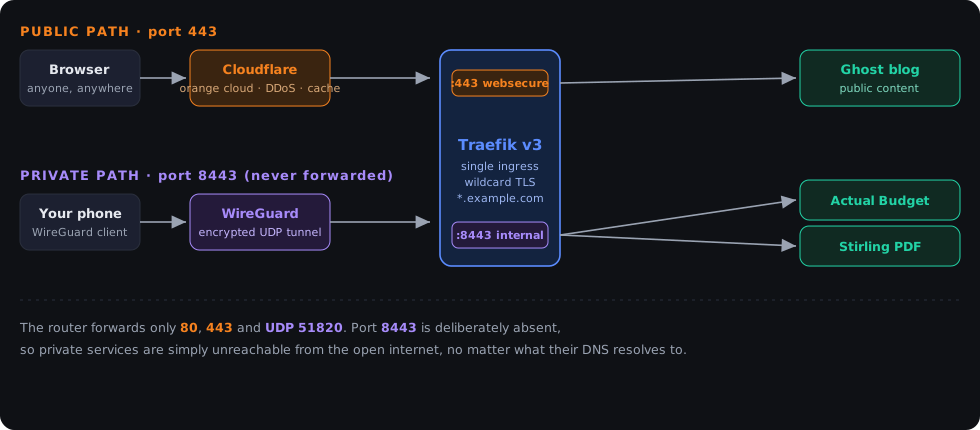
The mechanism is a second Traefik entrypoint on port 8443: same certificate, same subdomains, just a port the internet can’t reach. Cloudflare’s proxy where content is public; a closed port where content is private.
The stack
The foundation is WSL2 running Ubuntu 24.04 with Docker Engine installed natively. Docker Engine in WSL2 behaves exactly like Docker on a real Linux server, so migrating to a VPS later means copying my Compose files and updating DNS. Nothing platform-specific to unwind.
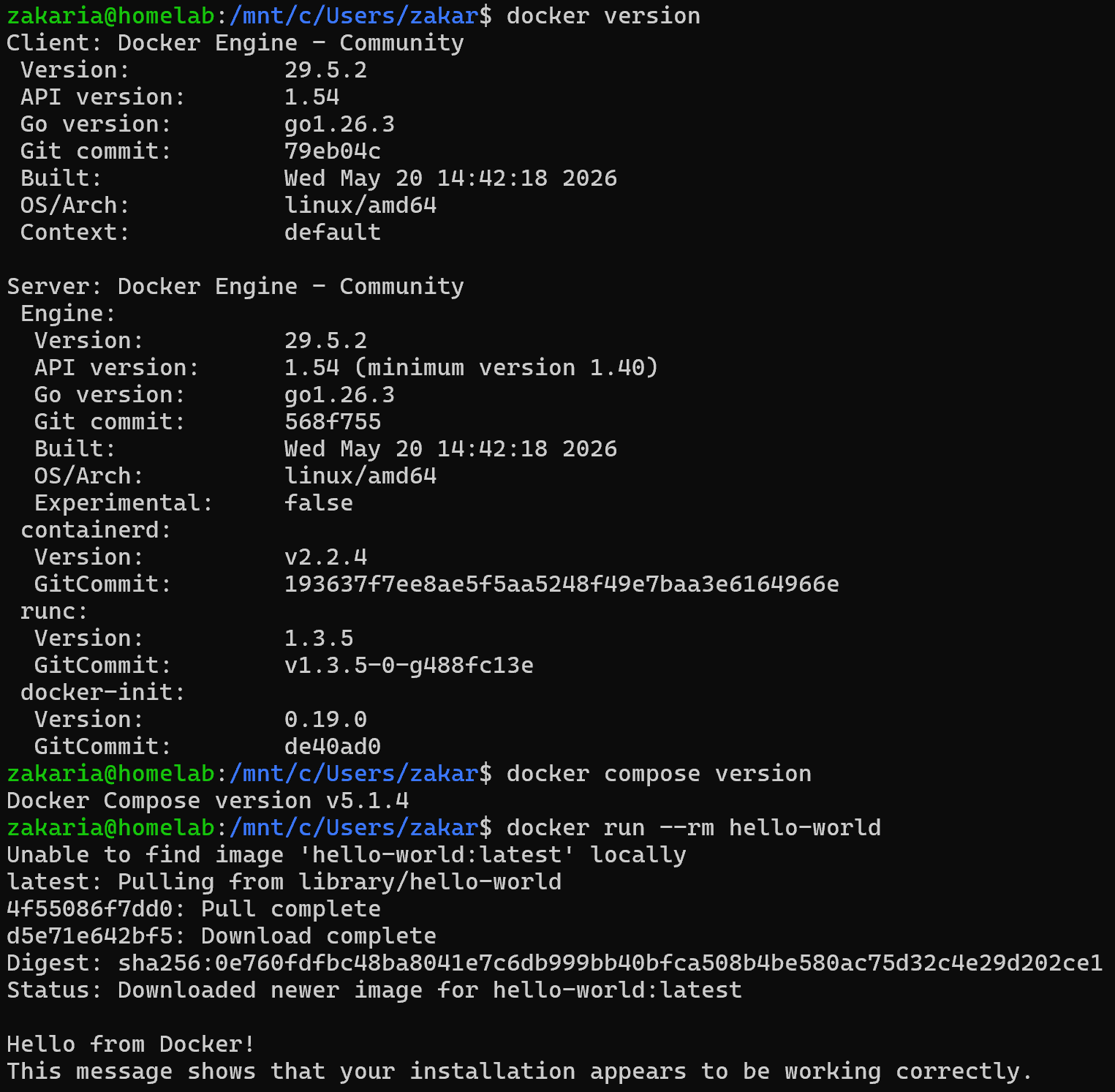
Foundation in place: Docker Engine running hello-world on Linux/amd64 inside WSL2.
Traefik v3 is the single front door. It holds one wildcard TLS certificate for *.example.com from Let’s Encrypt (renewed automatically via Cloudflare’s DNS API), and it routes every request by subdomain to the right container. Adding a new service is about ten lines of Docker Compose labels.
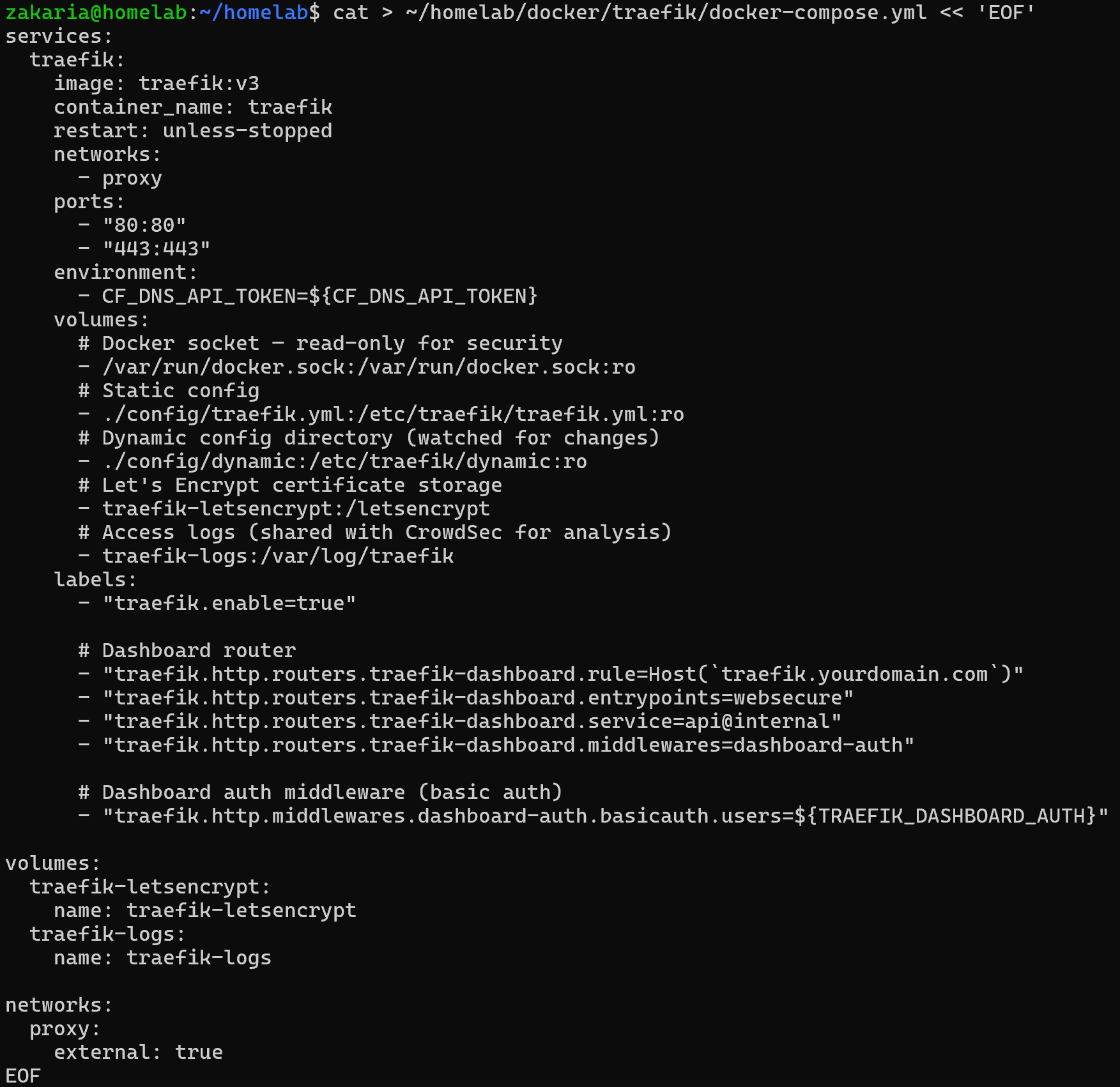
The single front door: Traefik’s compose with a read-only Docker socket, mounted configs, and the proxy network.
WireGuard handles the private path. CrowdSec reads Traefik’s logs and bans malicious IPs at the edge. Watchtower keeps every image patched. A small ddns-updater container keeps my DNS pointing at my home IP as my ISP rotates it. Ghost is the public blog (it’s what this site originally ran on, see the note at the top).
The bug that taught me the most
I originally enabled WSL2’s “mirrored” networking mode, which makes ports inside WSL2 appear directly on the Windows network interfaces. Clean in theory. In practice it broke VS Code’s Remote-WSL connection, which relies on the shared loopback. I couldn’t open a WSL window in my editor.
Switching back to the default NAT networking mode fixed VS Code but reintroduced a different problem: in NAT mode, WSL2 gets its own internal IP that changes on every restart, and Windows doesn’t automatically forward inbound traffic to it. I needed a netsh portproxy relay, rebuilt on each boot by a startup script.
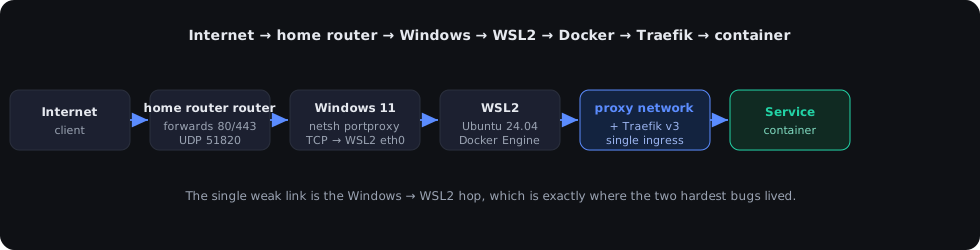
Six hops. The netsh portproxy relay and the eth0 IP that moves on every reboot are what make this interesting, and breakable.
The first version of that script relayed TCP through 127.0.0.1 and leaned on WSL2’s localhost forwarding, a double relay. It mostly worked, except HTTPS was subtly broken: Cloudflare returned 525 errors and Firefox refused the certificate. The double relay was re-segmenting the TLS records and corrupting the stream. The fix was to point the portproxy directly at the WSL2 eth0 IP, a single relay, and the TLS errors vanished instantly.
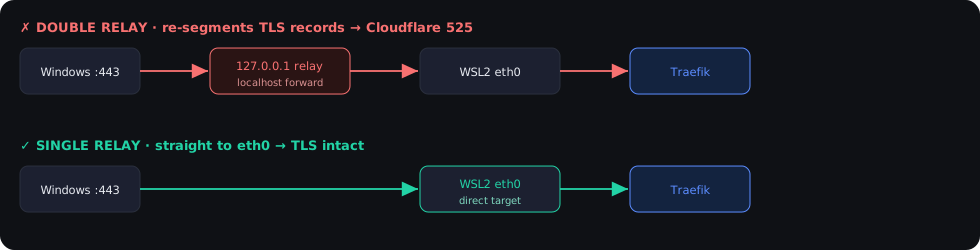
The portproxy must target WSL2’s eth0 directly. Hopping through 127.0.0.1 first quietly corrupts the TLS byte stream, and the only symptom is a Cloudflare 525.
The assumption I got wrong about “private” services
When I first deployed Actual Budget and the Traefik dashboard, I gave them grey-cloud DNS records in Cloudflare, meaning DNS-only, no proxy. My reasoning: if Cloudflare isn’t proxying the traffic, these services stay off Cloudflare’s infrastructure and are “private.”
It took a closer look to realize this is completely wrong.
Grey-cloud just means Cloudflare steps out after the DNS lookup. The record still resolves to my public home IP. The router still port-forwards 443 to Windows. Windows still relays it to Traefik. Traefik still routes by hostname. Anyone who knows finance.example.com can reach my personal finance data directly from the internet. The only thing I had between them and it was secure-headers middleware, which sets HTTP headers, not access controls.
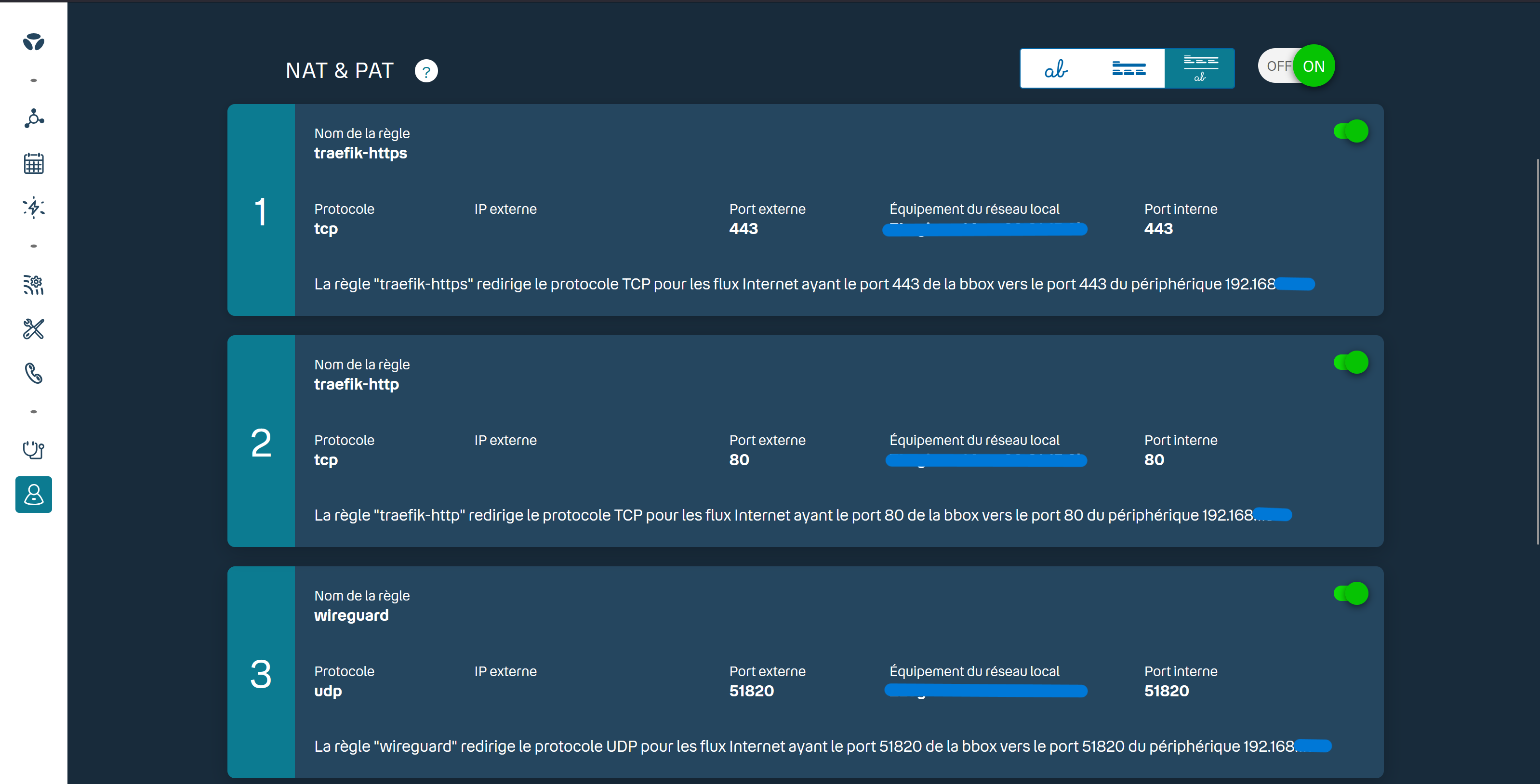
The router tells the whole story: only traefik-https (443), traefik-http (80) and wireguard (UDP 51820) are forwarded. Port 8443 is deliberately absent.
The fix I considered first was a Traefik ipAllowList middleware, only allowing requests from the WireGuard subnet (10.8.0.0/24). But that doesn’t work either, and the reason is instructive. netsh portproxy, the Windows tool that relays TCP from the public interface to WSL2, rewrites the source IP. Traefik always sees the Windows WSL2 gateway IP as the client, whether the original request came from a VPN client, the local network, or the open internet. An IP allowlist in Traefik can’t see through that relay.
The actual solution is simpler and more robust: a second Traefik entrypoint on port 8443, which I call internal. Private services declare entrypoints=internal in their Traefik labels. The home router has port-forwarding rules only for 80, 443, and UDP 51820, so port 8443 is deliberately absent. A Windows Firewall rule adds another layer, restricting port 8443 to the WireGuard subnet and the local LAN. The result: from the internet, the port is just closed. VPN clients reach https://finance.example.com:8443 through the tunnel without issue, and the wildcard TLS certificate covers it on any port.
The lesson is that “DNS-only” is about CDN bypass, not access control. Real network isolation requires actually not forwarding the port.
The DNS trap I didn’t notice until my iPhone couldn’t load the budget app
The VPN tunnel was working. The WireGuard app on my iPhone showed “Connected.” I navigated to https://finance.example.com:8443, waited, and got a timeout.
My first assumption was a firewall rule. I checked, and the Windows Firewall rule for port 8443 was there, restricted to the WireGuard subnet. My second assumption was that portproxy hadn’t rebuilt correctly. I checked, and the relay to WSL2 was intact. The VPN clients were reachable. The containers were running. Everything looked fine except the result.
The bug was in the routing table, not the firewall.
When my phone uses 1.1.1.1 as its DNS resolver, it resolves finance.example.com to my home’s WAN IP, the address Cloudflare’s DNS gives to everyone. My phone then sends a packet with dst=90.x.x.x:8443 through the WireGuard tunnel. That packet arrives at Windows. Windows doesn’t own 90.x.x.x, the home router does. So Windows looks at its routing table and sends the packet back out to its default gateway. The router has no port-forward rule for 8443 and drops it. The WSL2 portproxy relay never sees it.
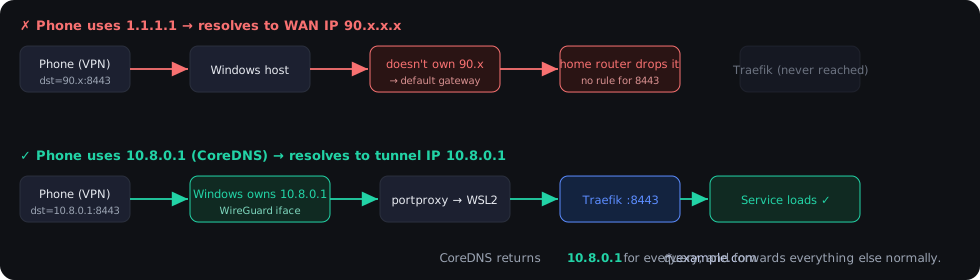
The tunnel being up was never the question. The question was whether the packet had anywhere to go once it arrived.
The fix is split DNS: a resolver that returns 10.8.0.1 (the WireGuard server address, which Windows does own) for *.example.com queries to private services, and forwards everything else normally. The phone sends dst=10.8.0.1:8443, Windows owns that IP, portproxy picks it up, and Traefik handles it from there.
The interesting part is why CoreDNS has to run natively on Windows rather than in a Docker container. It’s the same constraint that kept WireGuard native: netsh portproxy is TCP-only. DNS uses UDP port 53. There is no way to relay UDP from the WireGuard interface (10.8.0.1) into a container in WSL2. Same pattern, same root cause, same solution. Once I recognized it, the implementation took about twenty minutes: install CoreDNS as a Windows service via NSSM, write a short Corefile, change one line in the iPhone’s tunnel config.
One phone config change later, finance.example.com resolved to 10.8.0.1, the connection went through, and the budget app loaded over a WireGuard tunnel with a valid Let’s Encrypt certificate. The tunnel being up was never the question. The question was whether the packet had anywhere to go once it arrived.
The fix immediately revealed two more things I’d gotten wrong.
The DNS setting is for clients, not the server. My first instinct was to mirror the change on the WireGuard server config on my Windows machine: DNS = 10.8.0.1. It broke immediately. That setting routes Windows’ system resolver through CoreDNS, which cascades into WSL2 (it inherits Windows’ DNS via the Hyper-V gateway) and from there into every Docker container. The ddns-updater, which resolves *.example.com to check whether its Cloudflare records are current, started getting 10.8.0.1 back, concluded the record was wrong, and “corrected” it to the real public IP every five minutes. The records were fine; the resolver was lying. For Windows-local browser access, the right answer is a hosts file entry pointing to 127.0.0.1: it reads portproxy normally, doesn’t touch WSL2 DNS, and doesn’t affect anything outside the browser.
This carries an ongoing tax: every new VPN-only service needs a line added to C:\Windows\System32\drivers\etc\hosts as Administrator. VPN clients pick up the service automatically through CoreDNS; the Windows PC gets nothing until the hosts file is updated. It’s easy to forget and silently returns a 404 from Traefik. I’ve added it to the service deployment checklist so I don’t keep rediscovering it the hard way.
The rate limiter I added for “protection” broke the app. I’d given the VPN middleware chain (vpn-chain) the same strict limit as the Ghost admin path: 5 requests/second, burst of 10. Actual Budget is a React SPA. On first load it fires thirty to fifty parallel requests for JS and CSS chunks, exhausting that burst of ten before the page rendered. Traefik returned 429s with no Content-Type header, and the browser, seeing X-Content-Type-Options: nosniff on what should have been a JavaScript module, blocked them with a MIME mismatch. The app was broken by a security measure applied to the wrong traffic model. Rate limiting defends public endpoints against scanners and brute-force scripts. A service behind a VPN is already gated at the network level: the only people who can reach it hold a valid WireGuard keypair. A rate limiter there protects nothing and breaks everything. I removed it.
The other decision I’m glad I made
WireGuard for private services, rather than putting everything behind a login page.
A login page is still a publicly reachable endpoint. It can be brute-forced, it depends on your auth service staying up, and it’s only as strong as the weakest password in the household. WireGuard is different: from the internet it’s just occasional UDP packets, with no web surface to fingerprint or attack. The services behind it are simply invisible. For the genuinely public blog, Traefik’s middleware (security headers, rate limiting, CrowdSec) matches a different threat model, and that’s fine: public content, public defenses.
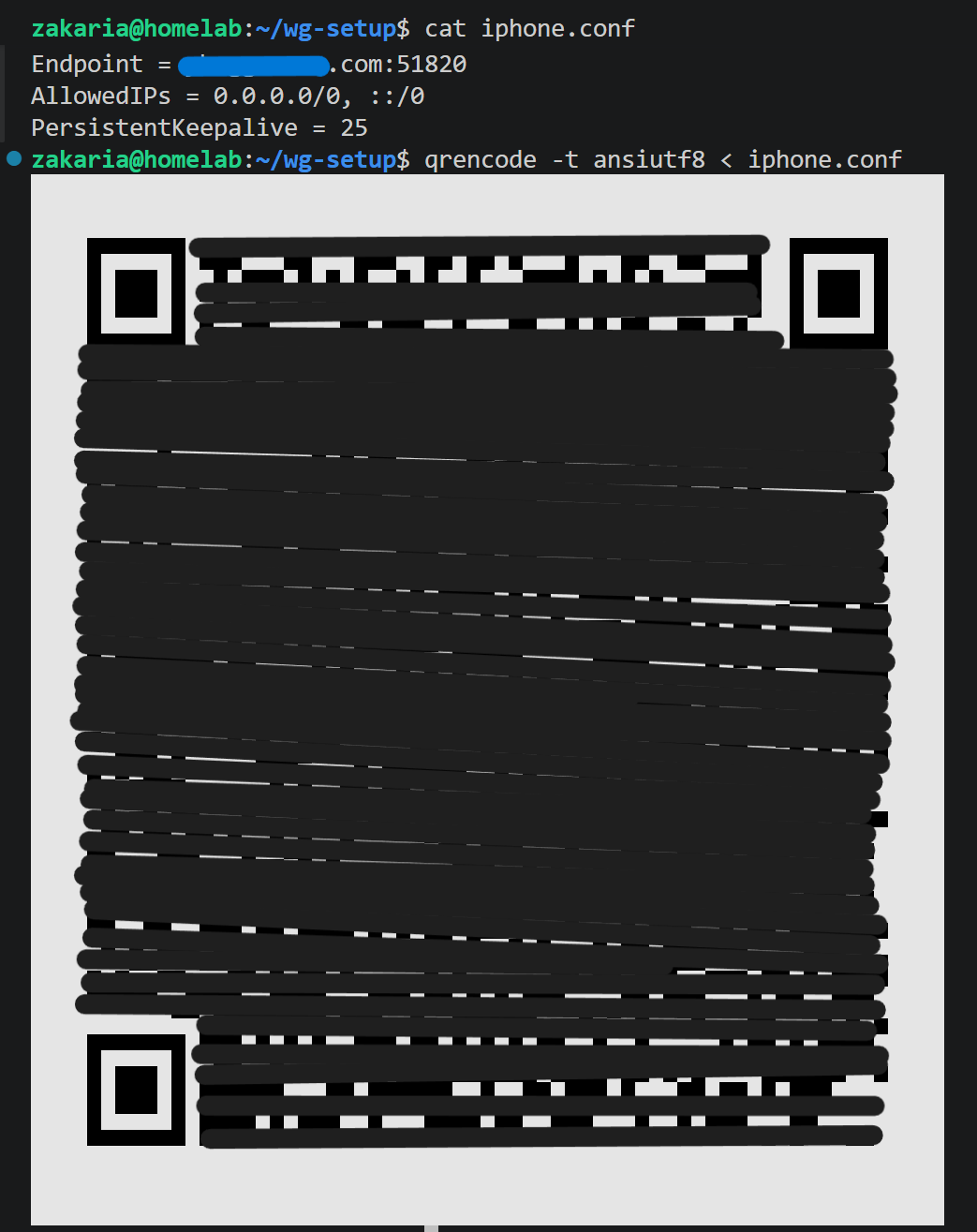
qrencode -t ansiutf8 renders the client config straight in the terminal. Scan it with the WireGuard mobile app and the phone is on the tunnel.
Adding a document processor, and the privacy question it forced
After the VPN setup settled, the next obvious addition was a PDF tool. I deal with the same documents most people do: tax forms, bank statements and other personal documents. They all arrive as PDFs, and they all need to be merged, redacted, or compressed at some point. I’d been uploading them to free web tools, which means sending financial documents to infrastructure I don’t control and can’t audit. That felt like a contradiction in a setup built around the exact opposite principle.
Stirling PDF is a self-hosted web app with over fifty PDF operations: merge, split, sign, OCR, extract images, compress, rotate, redact. It runs entirely locally, so documents are processed in the container and never leave the machine. That makes it worth hosting.
The deployment question came immediately: public or private?
My first instinct was to put it on a public subdomain and let Cloudflare proxy it, the same way the blog works. That lasted about thirty seconds of thinking. Cloudflare terminates TLS at their edge. For the blog, that’s fine, because blog posts aren’t private. For a service where I’m uploading tax returns, Cloudflare would see every document in plaintext before re-encrypting it toward my server. That’s the definition of a man-in-the-middle, and it’s exactly the reason the architecture exists the way it does.
The next idea was grey-cloud: skip the Cloudflare proxy, make it DNS-only, and let the traffic go directly. No Cloudflare inspection. But I’d already written a section of this post about why grey-cloud doesn’t mean private. Grey-cloud only means Cloudflare steps out after the DNS lookup. The port is still forwarded by the home router. The URL still resolves to my home IP. Anyone who finds docs.example.com can reach the service from the internet. For a financial document processor, “anyone can reach it if they know the URL” is not an acceptable security model, even with Stirling PDF’s own login page in the way.
So it went behind the VPN, on the internal entrypoint: the same port 8443 that Actual Budget uses, the same wildcard certificate, the same inaccessible-from-the-internet-because-the-router-never-forwards-it design. The only people who can reach it have a valid WireGuard key. That’s the right threat model for a document processor.
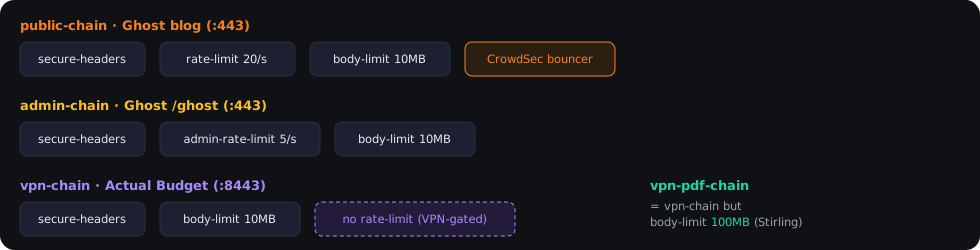
One ingress, four chains. Public endpoints get rate-limiting and CrowdSec; VPN endpoints drop the rate limiter (they’re already network-gated) and only adjust body size for large uploads.
One detail that wasn’t immediately obvious: body size limits. The vpn-chain middleware I’d built for Actual Budget includes a 10 MB body limit, a safety rail to prevent memory exhaustion from huge payloads. For a budgeting app that makes API calls, 10 MB is generous. For a PDF tool, it’s immediately wrong. A scanned contract with embedded images, or a tax return assembled from multiple sources, can easily be 20, 40, 80 MB. I needed a separate middleware chain, vpn-pdf-chain, with a 100 MB limit, while leaving the default vpn-chain as it was for every other VPN service.
The www redirect, three weeks overdue
While I was in the Traefik config, I noticed something I’d been ignoring: www.example.com returned a 404. Not a redirect, not a “coming soon,” just Traefik’s default 404. Anyone who typed www in the address bar got nothing.
The fix is a few lines of YAML in Traefik’s dynamic config. Traefik watches the dynamic/ directory for any .yml file and hot-reloads it, with no container restart. I added a routers.yml with a redirectRegex middleware that rewrites https://www.example.com/* to https://blog.example.com/$1, and a router that catches the www hostname and fires the redirect before the request reaches any service. Add a DNS A record for www in Cloudflare (grey cloud, since the redirect itself is harmless to proxy), and the 404 is gone.
It’s a small thing, but it’s the kind of small thing that makes a setup feel finished rather than perpetually “good enough.”
Locking it down before going public
Before pointing the blog at the open internet, I spent a session hardening. I tightened Traefik’s rate limit from a far-too-generous 100 requests per second to 20, with a strict 5/second cap on the blog’s admin path to crush login brute-forcing. I added connection timeouts to defeat Slowloris-style attacks, a request body size limit against memory exhaustion, and stripped the server headers that let scanners fingerprint my software versions. I pinned TLS to a 1.2 minimum with a strong cipher list, installed extra CrowdSec collections to catch scanners earlier, and put a UFW firewall in WSL2 plus matching Windows Firewall rules so only three ports are reachable at all.
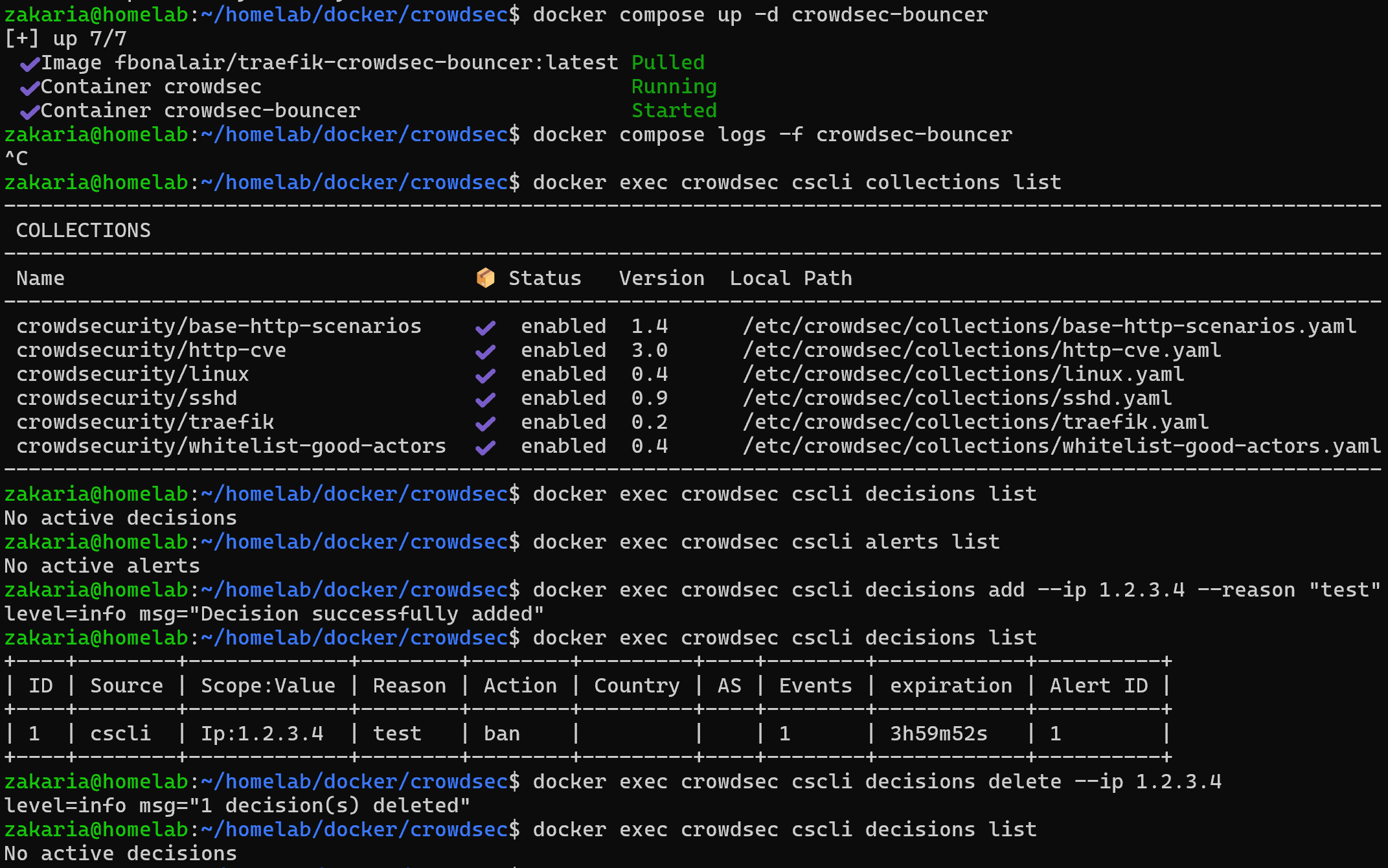
CrowdSec wired up: installed collections plus a test cscli decisions add/delete proving the ban pipeline actually reaches Traefik’s bouncer.
On the Cloudflare side, proxying the blog meant setting the SSL/TLS mode to Full (strict), so Cloudflare connects to my origin over HTTPS and validates the real certificate, plus Always Use HTTPS and a minimum TLS version at the edge. One important wiring detail: I had to add Cloudflare’s IP ranges to Traefik’s trusted-proxy list, otherwise every request would look like it came from Cloudflare and CrowdSec would have happily banned Cloudflare’s entire edge instead of real attackers.
What’s running now
Ghost for the blog, Actual Budget for personal finance, Stirling PDF for document processing behind the VPN, and the start of a growing set of private services (photo backup, media, dashboards), each one a Docker Compose file away from working. The www subdomain now redirects correctly. The entire infrastructure is defined in a private GitHub repository. Deploying to a VPS in the future is git clone, restore secrets, run the bootstrap script, update DNS.

The stack, healthy: traefik, ddns-updater, wireguard, crowdsec, watchtower and friends, all up.
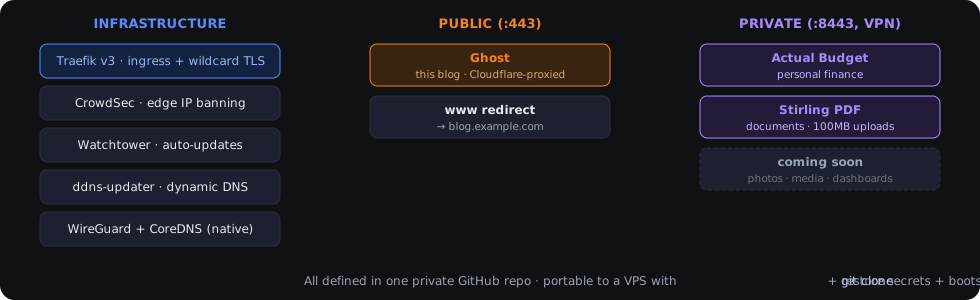
One host, two paths, one repo. Adding the next service is a Compose file, a DNS record, and a line in the deployment checklist.
What’s next
Self-hosted email, eventually, but on a VPS, not at home. My ISP blocks outbound port 25 on residential lines, which makes home-hosted mail effectively impossible. On a VPS with a clean dedicated IP and a proper reverse-DNS record, it’s a real project rather than a fool’s errand. Beyond that: a family photo and file cloud, music streaming, and a proper monitoring stack so I can see what all these containers are actually doing.
If you’re a developer who’s curious about self-hosting and wants to learn how this all fits together, I hope this was useful. The tooling is genuinely good, and the best way to understand it is to build something with it.
A sanitized, public version of the full setup guide, architecture, and every config file is on GitHub: https://github.com/zakaria-ybeggazene/homelab-template.
Questions, or want to compare setups? Find me on LinkedIn, GitHub, or X.